> ## Documentation Index
> Fetch the complete documentation index at: https://docs.vms.verolabs.co/llms.txt
> Use this file to discover all available pages before exploring further.
# Setup guideline VMS agent collector
> Deploy agents by script and configure probe monitoring
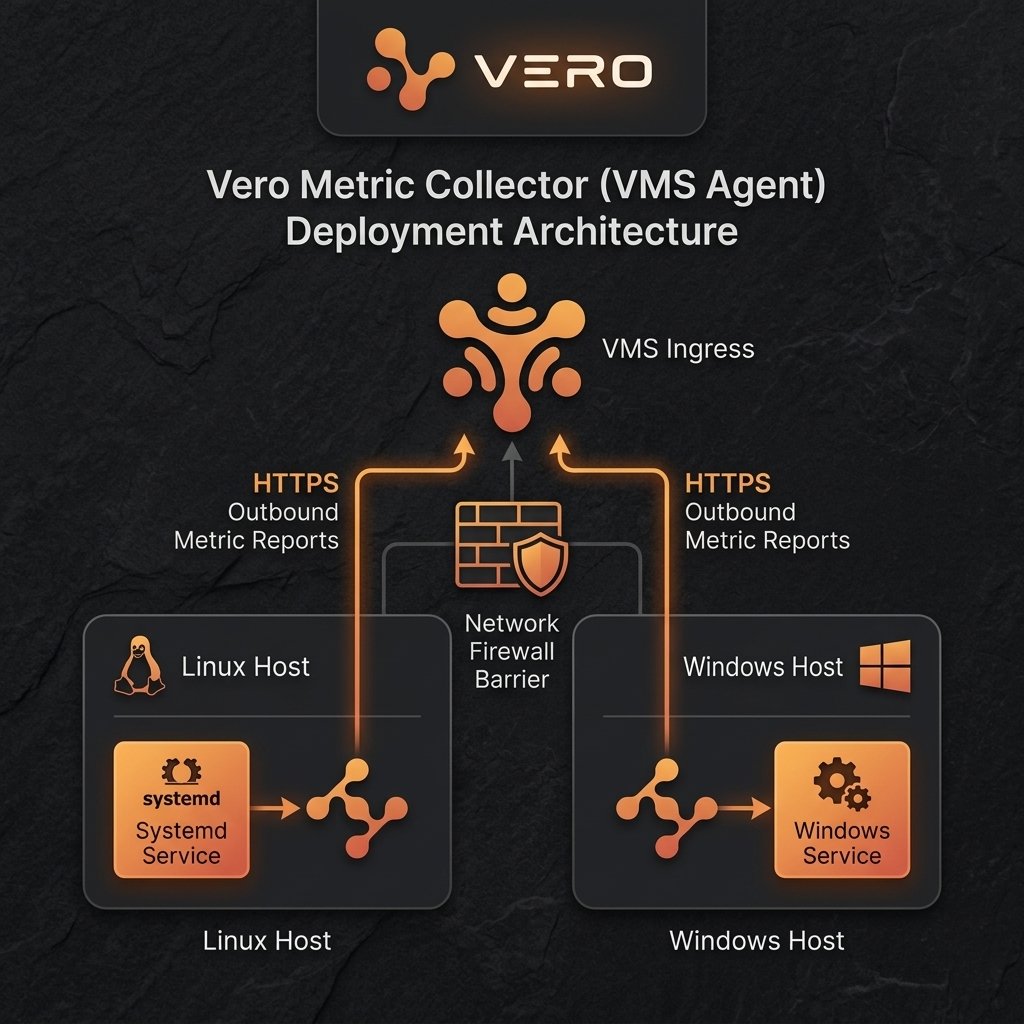
The VMS agent collector runs on the customer host to collect metrics, checks, and logs, then pushes them to VMS Master over HTTPS.
## Agent Deployment Overview
 ***
## Prerequisites (Agent)
| Prerequisite | Description |
| ------------ | ------------------------------- |
| OS | **Linux** or **Windows** |
| Connection | Outbound HTTPS to `INGRESS_URL` |
***
## Deployment Flow on Linux
* **Step**: On the target host, run the script (no sudo required):
```bash theme={null}
curl -fsSL "" | sh
```
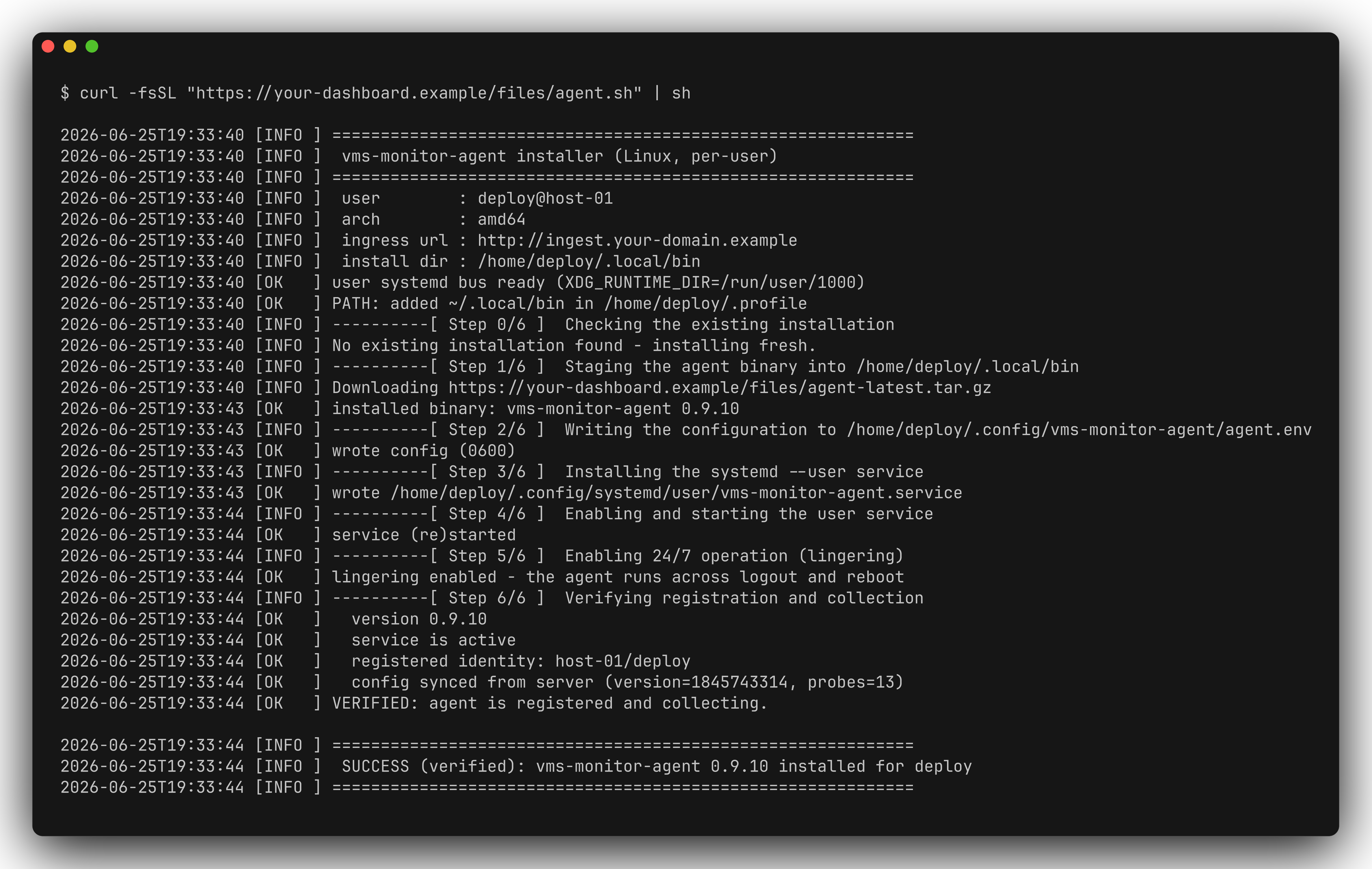
* **Check**: The script prints `Step 1/6 ... 6/6` progress.
* **Result**: `SUCCESS (verified): vms-monitor-agent installed`.
***
## Prerequisites (Agent)
| Prerequisite | Description |
| ------------ | ------------------------------- |
| OS | **Linux** or **Windows** |
| Connection | Outbound HTTPS to `INGRESS_URL` |
***
## Deployment Flow on Linux
* **Step**: On the target host, run the script (no sudo required):
```bash theme={null}
curl -fsSL "" | sh
```
* **Check**: The script prints `Step 1/6 ... 6/6` progress.
* **Result**: `SUCCESS (verified): vms-monitor-agent installed`.
 * **Step**: Query the service status:
```bash theme={null}
systemctl --user status vms-monitor-agent --no-pager
```
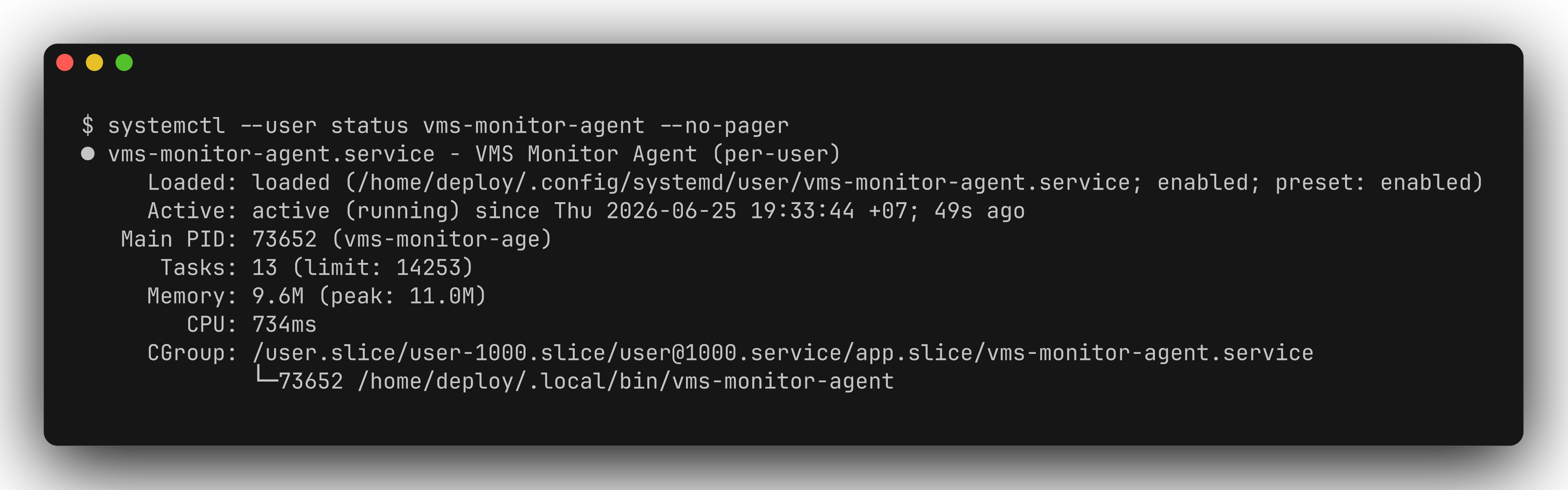
* **Check**: Status shows `active (running)`.
* **Result**: Binary at `~/.local/bin/vms-monitor-agent`, config at `~/.config/vms-monitor-agent/agent.env`.
* **Step**: Query the service status:
```bash theme={null}
systemctl --user status vms-monitor-agent --no-pager
```
* **Check**: Status shows `active (running)`.
* **Result**: Binary at `~/.local/bin/vms-monitor-agent`, config at `~/.config/vms-monitor-agent/agent.env`.
 * **Step**: Tail live logs:
```bash theme={null}
journalctl --user -u vms-monitor-agent -f
```
* **Check**: Look for the `agent started` line with `agentKey`, `probes`, and `configVersion`.
* **Result**: A JSON log line appears, e.g.:
```json theme={null}
{"level":"INFO","msg":"agent started","agentKey":"web-01/appuser","configVersion":12,"probes":8}
```
* **Step**: Tail live logs:
```bash theme={null}
journalctl --user -u vms-monitor-agent -f
```
* **Check**: Look for the `agent started` line with `agentKey`, `probes`, and `configVersion`.
* **Result**: A JSON log line appears, e.g.:
```json theme={null}
{"level":"INFO","msg":"agent started","agentKey":"web-01/appuser","configVersion":12,"probes":8}
```
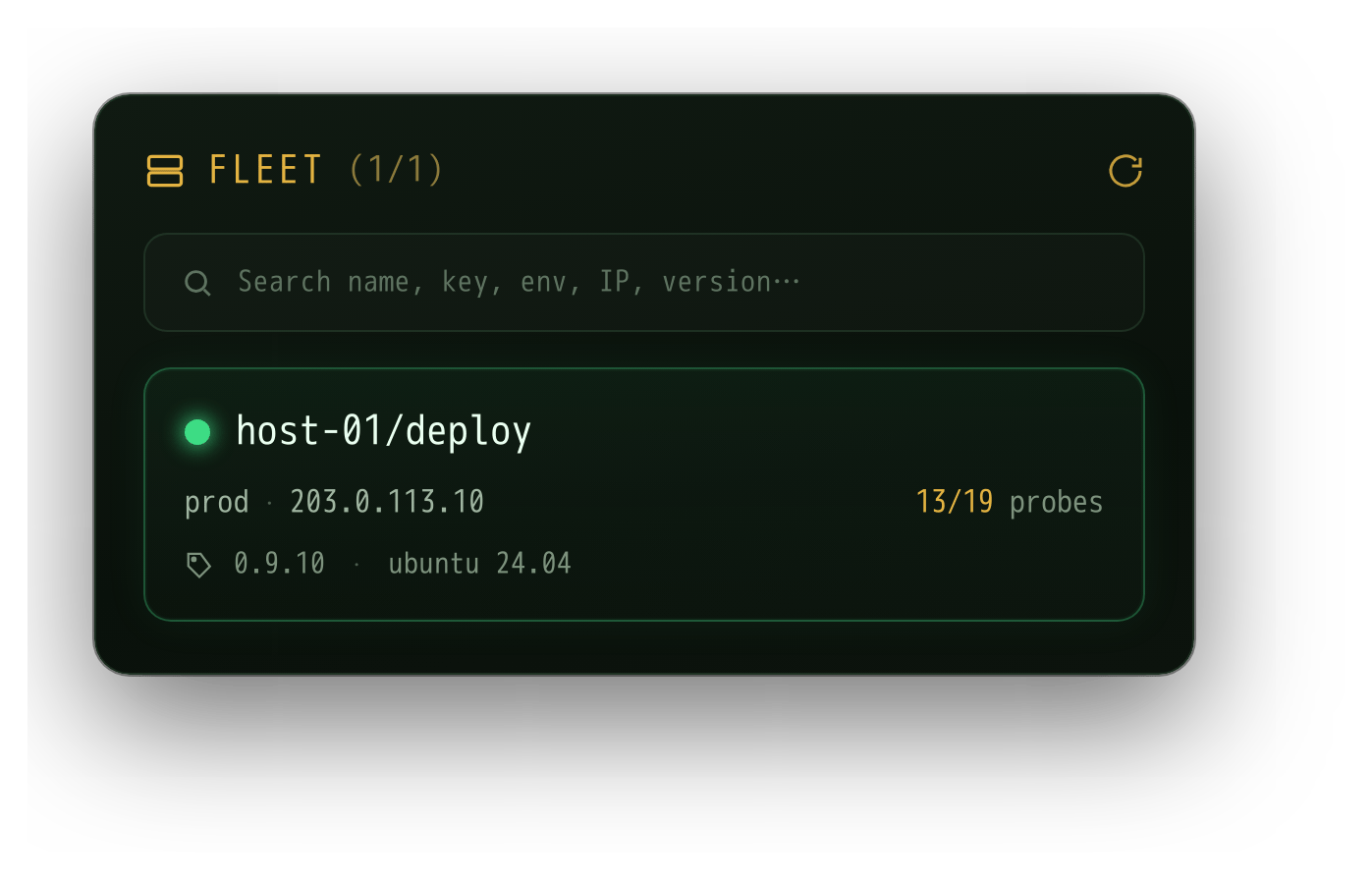
 Once installed, the agent appears in **Agent Config (FLEET)** on the Dashboard (`https:///dashboards/agent-config`):
 ***
## Deployment Flow on Windows
* **Step**: Open PowerShell (no Administrator required):
```powershell theme={null}
irm "" | iex
```
* **Check**: The script prints `Step 1/6 ... 6/6` progress.
* **Result**: `SUCCESS (verified): vms-monitor-agent installed`.
* **Step**: Inspect the auto-start task and the agent process:
```powershell theme={null}
Get-ScheduledTask -TaskName vms-monitor-agent
Get-Process vms-monitor-agent
```
* **Check**: The task exists and an agent process is running.
* **Result**: Binary at `%LOCALAPPDATA%\vms-monitor-agent\vms-monitor-agent.exe`.
* **Step**: Print the version:
```powershell theme={null}
& "$env:LOCALAPPDATA\vms-monitor-agent\vms-monitor-agent.exe" version
```
* **Check**: Prints version, commit, and build date.
* **Result**: Agent is online on the Dashboard.
***
## Managing the agent from the command line
After install, open a **new terminal/PowerShell** and use the `vms-monitor-agent` command (no `sudo`/Administrator needed).
| Command | What it does |
| ----------------------------- | ----------------------------------------------------------------------- |
| `vms-monitor-agent status` | Show installed / running / auto-start / version |
| `vms-monitor-agent start` | Start and enable auto-start at login/boot |
| `vms-monitor-agent stop` | Stop **permanently** and disable auto-start — it will **not** come back |
| `vms-monitor-agent restart` | Restart, leaving auto-start unchanged |
| `vms-monitor-agent uninstall` | Self-remove the agent (add `--purge` to also wipe state) |
| `vms-monitor-agent version` | Print version, commit, build date |
| `vms-monitor-agent help` | Print the full usage guide |
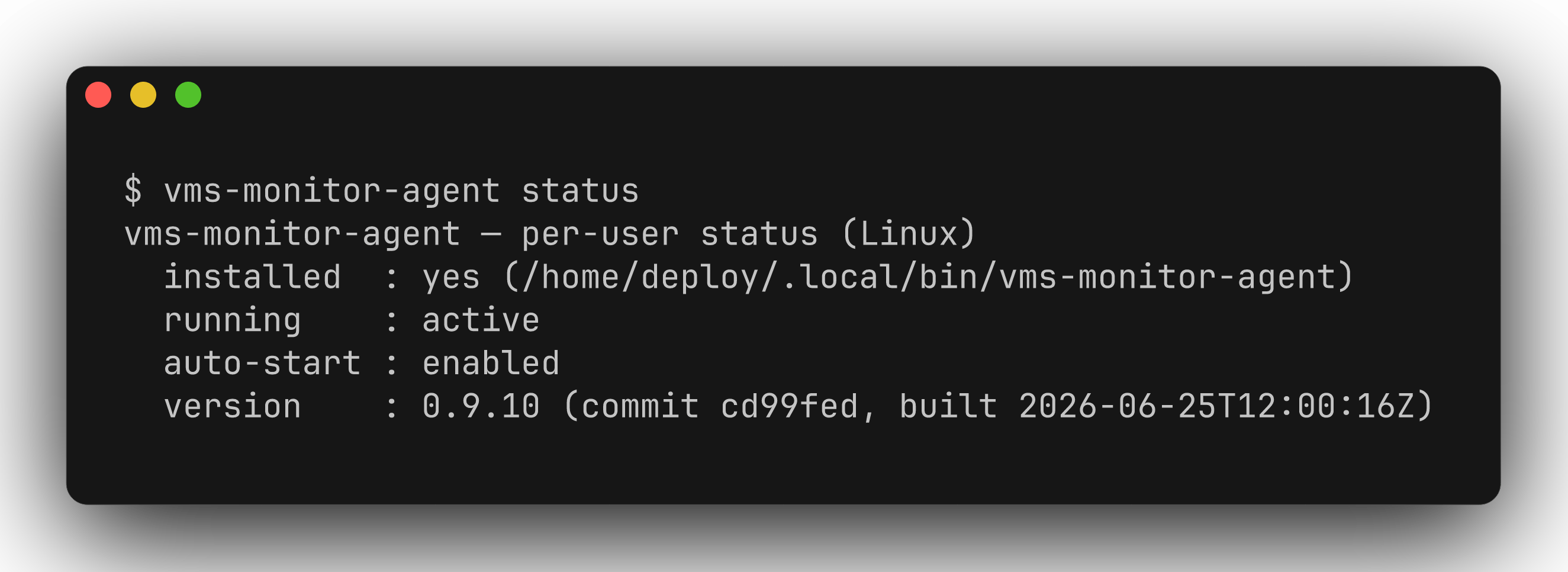
`status` shows whether the agent is installed / running / auto-start / version:
***
## Deployment Flow on Windows
* **Step**: Open PowerShell (no Administrator required):
```powershell theme={null}
irm "" | iex
```
* **Check**: The script prints `Step 1/6 ... 6/6` progress.
* **Result**: `SUCCESS (verified): vms-monitor-agent installed`.
* **Step**: Inspect the auto-start task and the agent process:
```powershell theme={null}
Get-ScheduledTask -TaskName vms-monitor-agent
Get-Process vms-monitor-agent
```
* **Check**: The task exists and an agent process is running.
* **Result**: Binary at `%LOCALAPPDATA%\vms-monitor-agent\vms-monitor-agent.exe`.
* **Step**: Print the version:
```powershell theme={null}
& "$env:LOCALAPPDATA\vms-monitor-agent\vms-monitor-agent.exe" version
```
* **Check**: Prints version, commit, and build date.
* **Result**: Agent is online on the Dashboard.
***
## Managing the agent from the command line
After install, open a **new terminal/PowerShell** and use the `vms-monitor-agent` command (no `sudo`/Administrator needed).
| Command | What it does |
| ----------------------------- | ----------------------------------------------------------------------- |
| `vms-monitor-agent status` | Show installed / running / auto-start / version |
| `vms-monitor-agent start` | Start and enable auto-start at login/boot |
| `vms-monitor-agent stop` | Stop **permanently** and disable auto-start — it will **not** come back |
| `vms-monitor-agent restart` | Restart, leaving auto-start unchanged |
| `vms-monitor-agent uninstall` | Self-remove the agent (add `--purge` to also wipe state) |
| `vms-monitor-agent version` | Print version, commit, build date |
| `vms-monitor-agent help` | Print the full usage guide |
`status` shows whether the agent is installed / running / auto-start / version:
 `stop` (permanent) then `start` again — notice `running` and `auto-start` change accordingly:
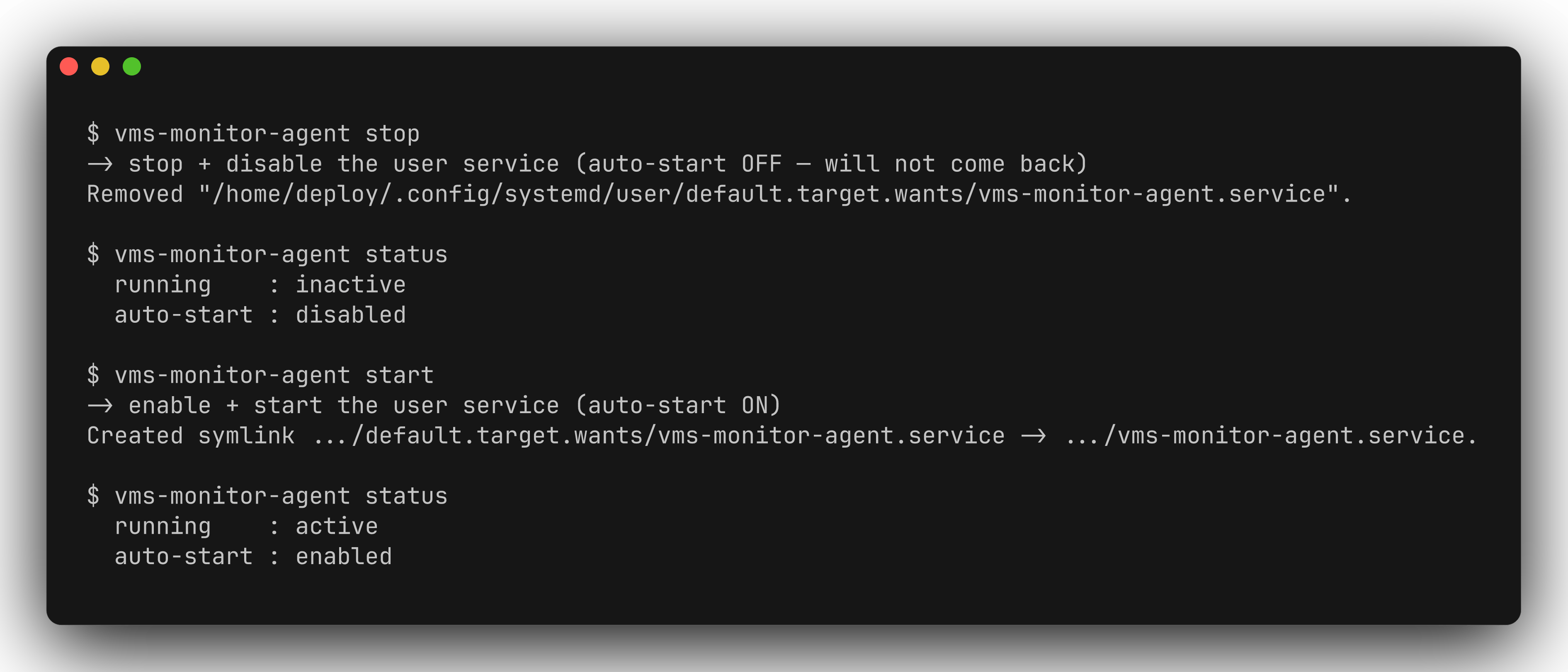 **`stop` is permanent**: it stops the process and disables auto-start. The agent **does not come back after a reboot**. Use `start` to resume or `uninstall` to remove.
If `command not found`, open a new shell or use the full path (`~/.local/bin/vms-monitor-agent` on Linux, `%LOCALAPPDATA%\vms-monitor-agent\vms-monitor-agent.exe` on Windows).
***
## Updating the agent
Re-run the install command:
* **Linux**:
```bash theme={null}
curl -fsSL "" | sh
```
The script compares versions and asks before replacing the binary.
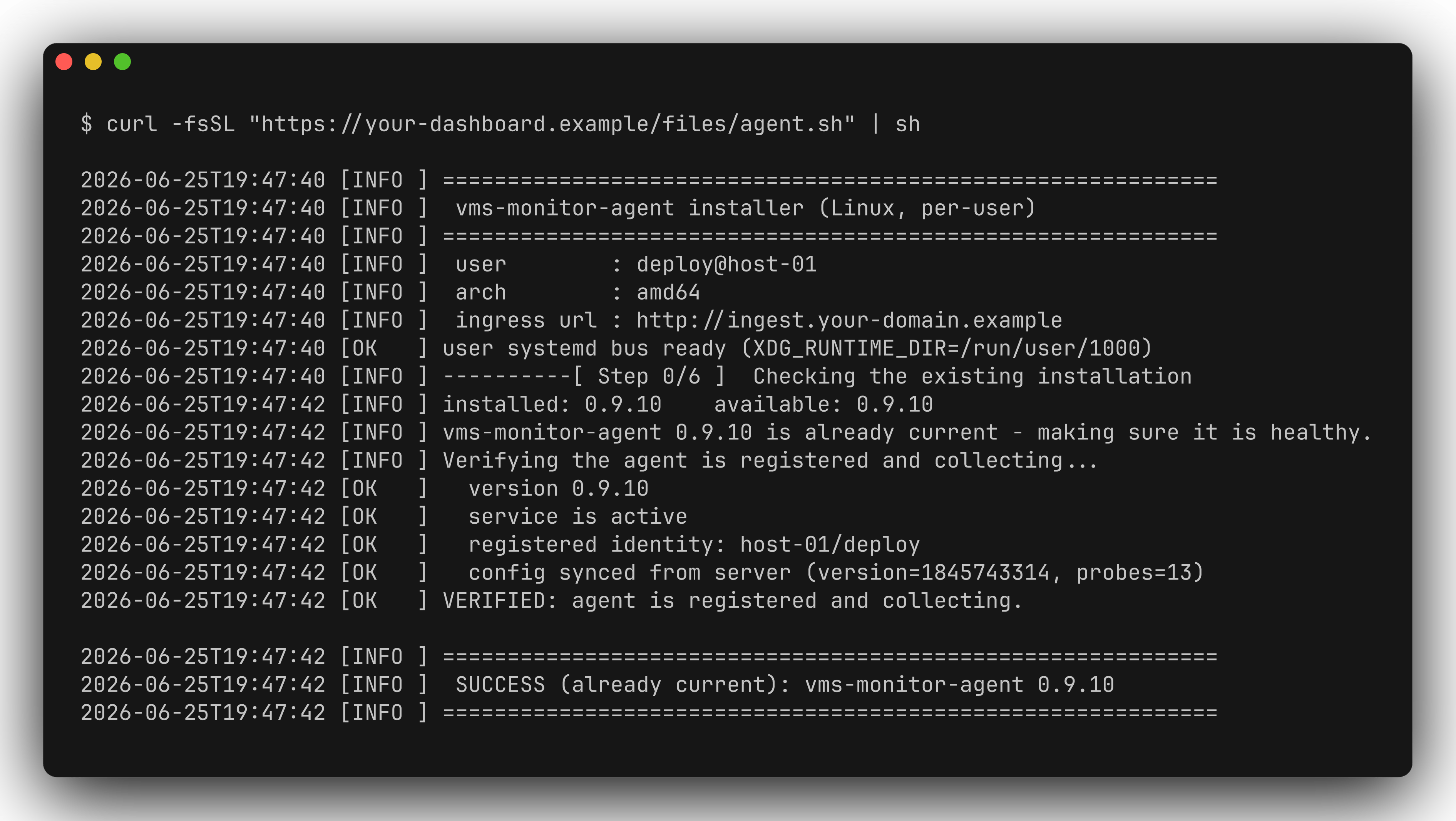
If already up to date, the script reports `already current`:
**`stop` is permanent**: it stops the process and disables auto-start. The agent **does not come back after a reboot**. Use `start` to resume or `uninstall` to remove.
If `command not found`, open a new shell or use the full path (`~/.local/bin/vms-monitor-agent` on Linux, `%LOCALAPPDATA%\vms-monitor-agent\vms-monitor-agent.exe` on Windows).
***
## Updating the agent
Re-run the install command:
* **Linux**:
```bash theme={null}
curl -fsSL "" | sh
```
The script compares versions and asks before replacing the binary.
If already up to date, the script reports `already current`:
 * **Windows**:
```powershell theme={null}
irm "" | iex
```
***
## Uninstalling the agent
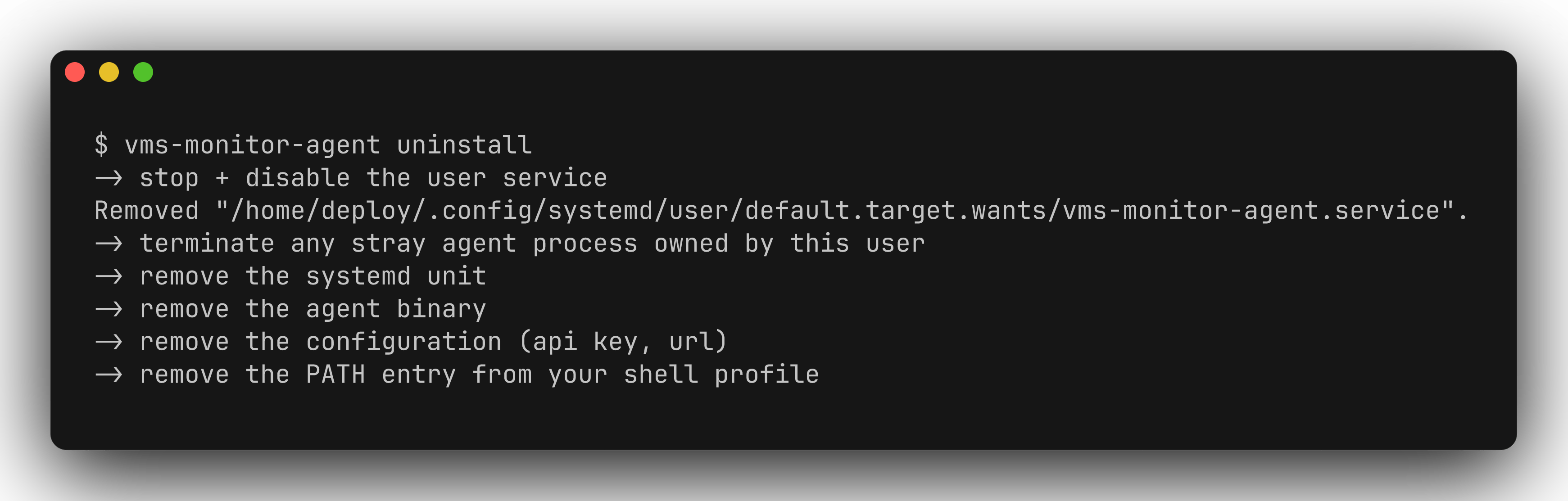
Run `uninstall` from the binary, or re-fetch the script with `uninstall`:
* **Linux**:
```bash theme={null}
# Remove on the host with the binary; add --purge to also wipe state:
vms-monitor-agent uninstall
# Or, on a host without this command, re-fetch the script:
curl -fsSL "" | sh -s -- uninstall
```
* **Windows**:
```powershell theme={null}
irm "" | iex
```
***
## Uninstalling the agent
Run `uninstall` from the binary, or re-fetch the script with `uninstall`:
* **Linux**:
```bash theme={null}
# Remove on the host with the binary; add --purge to also wipe state:
vms-monitor-agent uninstall
# Or, on a host without this command, re-fetch the script:
curl -fsSL "" | sh -s -- uninstall
```
 * **Windows**:
```powershell theme={null}
# Remove on the host with the binary; add --purge to also delete the install dir:
vms-monitor-agent uninstall
# Or re-fetch the script:
& ([scriptblock]::Create((irm ""))) uninstall
```
***
## Troubleshooting
| Symptoms | Likely Cause | Resolution |
| -------------------------------- | ------------------------------ | --------------------------------------------------- |
| Agent fails to start immediately | Missing ingress URL or API key | Check agent logs for the error detail |
| `401` Authentication blocked | Invalid or rotated API key | Get a new key from VMS Master and re-run the script |
* **Windows**:
```powershell theme={null}
# Remove on the host with the binary; add --purge to also delete the install dir:
vms-monitor-agent uninstall
# Or re-fetch the script:
& ([scriptblock]::Create((irm ""))) uninstall
```
***
## Troubleshooting
| Symptoms | Likely Cause | Resolution |
| -------------------------------- | ------------------------------ | --------------------------------------------------- |
| Agent fails to start immediately | Missing ingress URL or API key | Check agent logs for the error detail |
| `401` Authentication blocked | Invalid or rotated API key | Get a new key from VMS Master and re-run the script |